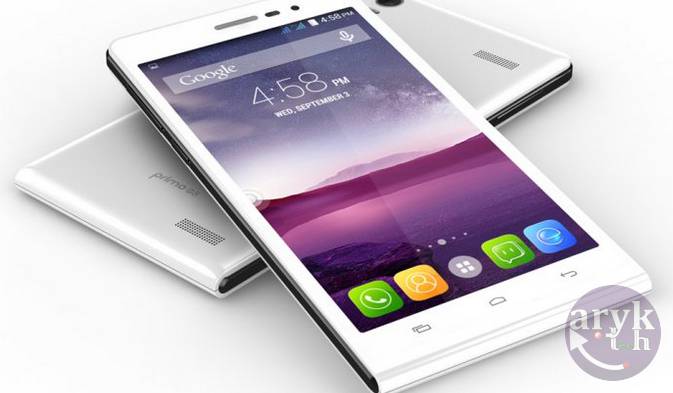
Walton Primo S4 Stock Firmware, Stock ROM Download

Walton Stock ROM Stock Firmware File
This Walton Primo S4 [MT6592, Android 4.4.2] Firmware, Stock ROM file can be used with any service tools capable of Flashing Stock ROM file on Walton Android devices.
Stock firmware are mostly needed to either upgrade your Walton Primo S4 [MT6592, Android 4.4.2], downgrade it or, to simply flash the phone to correct certain software issues or malfunctions on the phone. Here on this page I have contained the download link for the complete Walton Primo S4 [MT6592, Android 4.4.2], Stock ROM file which can be used to flash factory OS back to your Walton Primo S4 [MT6592, Android 4.4.2].

How to Download Stock Firmware and Flash Walton Primo S4 [MT6592, Android 4.4.2] with the Stock ROM

1. Download SP Flash Tool from here and install it on your PC. If you don't have MTK Android drivers installed on your PC yet, you must install it too. Download VCOM Drivers here

2. Download your Walton Primo S4 [MT6592, Android 4.4.2] firmware, Stock ROM File from here.

3. Open the SP Flash Tool you downloaded from the link above. It is compressed in a zip file, simply extract it onto a folder on your PC, open the folder to locate flash_tool.exe application and then; double-click it to lunch the program.

4. Go to the folder where you downloaded the Walton Primo S4 [MT6592, Android 4.4.2] Stock ROM and open it. It is compressed in a ZIP File, simply decompress/unzip it onto a folder on your PC.

5. On SP Flash Tool, select Scatter Loading. A window should open. Using the browse button, navigate to the folder where you unzipped the Walton Primo S4 [MT6592, Android 4.4.2] stock ROM and then select "MTXXXX-ANDROID-SCATTER", from there. Remember: "xxxx" refers to the MTK version of your phone.

6. Once selected, SP Flash Tool will load all the partitions in the Walton Primo S4 [MT6592, Android 4.4.2] stock ROM you downloaded. From the list, mark all the partitions EXCEPT these three (3): Preloader, UserData and CACHE.

7. Now, select Download on SP Flash Tool.

8. Put off your Walton Primo S4 [MT6592, Android 4.4.2] or remove battery from it and re-insert the battery again. Connect your Walton Primo S4 [MT6592, Android 4.4.2] Mobile Phone to the PC and then tap the Power button once.

9. For few seconds, your Windows PC will install the necessary drivers for the flashing operation and then, the flashing operation will commence promptly.

10. When the flashing operation completes, SP Flash Tool will display a green PASS circle. You may then disconnect your phone from the PC.
CONGRATULATIONS! You have successfully flashed your Walton Primo S4 [MT6592, Android 4.4.2] to its factory defaults.
NOTE: if you encounter any errors while flashing your Walton Primo S4 [MT6592, Android 4.4.2] using SP Flash Tools, see here: Solutions to All SP Flash Tools Errors: Practical Guides

For Graphical Illustrations on how to flash Walton android devices, see here: How to Flash Walton Android Device: Step by Step with Pictures

Also Read:

Video Tutorial: How to Flash All MTK Android Devices Including Walton Primo S4 [MT6592, Android 4.4.2]


Oppo R827 Stock Firmware, Stock ROM Download

Walton Stock ROM Stock Firmware File
This Oppo R827 Firmware, Stock ROM file can be used with any service tools capable of Flashing Stock ROM file on Walton Android devices.
Stock firmware are mostly needed to either upgrade your Oppo R827, downgrade it or, to simply flash the phone to correct certain software issues or malfunctions on the phone. Here on this page I have contained the download link for the complete Oppo R827, Stock ROM file which can be used to flash factory OS back to your Oppo R827.

How to Download Stock Firmware and Flash Oppo R827 with the Stock ROM

1. Download SP Flash Tool from here and install it on your PC. If you don't have MTK Android drivers installed on your PC yet, you must install it too. Download VCOM Drivers here

2. Download your Oppo R827 firmware, Stock ROM File from here.

3. Open the SP Flash Tool you downloaded from the link above. It is compressed in a zip file, simply extract it onto a folder on your PC, open the folder to locate flash_tool.exe application and then; double-click it to lunch the program.

4. Go to the folder where you downloaded the Oppo R827 Stock ROM and open it. It is compressed in a ZIP File, simply decompress/unzip it onto a folder on your PC.

5. On SP Flash Tool, select Scatter Loading. A window should open. Using the browse button, navigate to the folder where you unzipped the Oppo R827 stock ROM and then select "MTXXXX-ANDROID-SCATTER", from there. Remember: "xxxx" refers to the MTK version of your phone.

6. Once selected, SP Flash Tool will load all the partitions in the Oppo R827 stock ROM you downloaded. From the list, mark all the partitions EXCEPT these three (3): Preloader, UserData and CACHE.

7. Now, select Download on SP Flash Tool.

8. Put off your Oppo R827 or remove battery from it and re-insert the battery again. Connect your Oppo R827 Mobile Phone to the PC and then tap the Power button once.

9. For few seconds, your Windows PC will install the necessary drivers for the flashing operation and then, the flashing operation will commence promptly.

10. When the flashing operation completes, SP Flash Tool will display a green PASS circle. You may then disconnect your phone from the PC.
CONGRATULATIONS! You have successfully flashed your Oppo R827 to its factory defaults.
NOTE: if you encounter any errors while flashing your Oppo R827 using SP Flash Tools, see here: Solutions to All SP Flash Tools Errors: Practical Guides

For Graphical Illustrations on how to flash Walton android devices, see here: How to Flash Walton Android Device: Step by Step with Pictures

Also Read:

Video Tutorial: How to Flash All MTK Android Devices Including Oppo R827


Zopo ZP800 Stock Firmware, Stock ROM Download

Walton Stock ROM Stock Firmware File
This Zopo ZP800 [Android 4.1.1] Firmware, Stock ROM file can be used with any service tools capable of Flashing Stock ROM file on Walton Android devices.
Stock firmware are mostly needed to either upgrade your Zopo ZP800 [Android 4.1.1], downgrade it or, to simply flash the phone to correct certain software issues or malfunctions on the phone. Here on this page I have contained the download link for the complete Zopo ZP800 [Android 4.1.1], Stock ROM file which can be used to flash factory OS back to your Zopo ZP800 [Android 4.1.1].

How to Download Stock Firmware and Flash Zopo ZP800 [Android 4.1.1] with the Stock ROM

1. Download SP Flash Tool from here and install it on your PC. If you don't have MTK Android drivers installed on your PC yet, you must install it too. Download VCOM Drivers here

2. Download your Zopo ZP800 [Android 4.1.1] firmware, Stock ROM File from here.

3. Open the SP Flash Tool you downloaded from the link above. It is compressed in a zip file, simply extract it onto a folder on your PC, open the folder to locate flash_tool.exe application and then; double-click it to lunch the program.

4. Go to the folder where you downloaded the Zopo ZP800 [Android 4.1.1] Stock ROM and open it. It is compressed in a ZIP File, simply decompress/unzip it onto a folder on your PC.

5. On SP Flash Tool, select Scatter Loading. A window should open. Using the browse button, navigate to the folder where you unzipped the Zopo ZP800 [Android 4.1.1] stock ROM and then select "MTXXXX-ANDROID-SCATTER", from there. Remember: "xxxx" refers to the MTK version of your phone.

6. Once selected, SP Flash Tool will load all the partitions in the Zopo ZP800 [Android 4.1.1] stock ROM you downloaded. From the list, mark all the partitions EXCEPT these three (3): Preloader, UserData and CACHE.

7. Now, select Download on SP Flash Tool.

8. Put off your Zopo ZP800 [Android 4.1.1] or remove battery from it and re-insert the battery again. Connect your Zopo ZP800 [Android 4.1.1] Mobile Phone to the PC and then tap the Power button once.

9. For few seconds, your Windows PC will install the necessary drivers for the flashing operation and then, the flashing operation will commence promptly.

10. When the flashing operation completes, SP Flash Tool will display a green PASS circle. You may then disconnect your phone from the PC.
CONGRATULATIONS! You have successfully flashed your Zopo ZP800 [Android 4.1.1] to its factory defaults.
NOTE: if you encounter any errors while flashing your Zopo ZP800 [Android 4.1.1] using SP Flash Tools, see here: Solutions to All SP Flash Tools Errors: Practical Guides

For Graphical Illustrations on how to flash Walton android devices, see here: How to Flash Walton Android Device: Step by Step with Pictures

Also Read:

Video Tutorial: How to Flash All MTK Android Devices Including Zopo ZP800 [Android 4.1.1]


Walton Primo V2 Stock Firmware, Stock ROM Download

Walton Stock ROM Stock Firmware File
This Walton Primo V2 [Android 5.0] Firmware, Stock ROM file can be used with any service tools capable of Flashing Stock ROM file on Walton Android devices.
Stock firmware are mostly needed to either upgrade your Walton Primo V2 [Android 5.0], downgrade it or, to simply flash the phone to correct certain software issues or malfunctions on the phone. Here on this page I have contained the download link for the complete Walton Primo V2 [Android 5.0], Stock ROM file which can be used to flash factory OS back to your Walton Primo V2 [Android 5.0].

How to Download Stock Firmware and Flash Walton Primo V2 [Android 5.0] with the Stock ROM

1. Download SP Flash Tool from here and install it on your PC. If you don't have MTK Android drivers installed on your PC yet, you must install it too. Download VCOM Drivers here

2. Download your Walton Primo V2 [Android 5.0] firmware, Stock ROM File from here.

3. Open the SP Flash Tool you downloaded from the link above. It is compressed in a zip file, simply extract it onto a folder on your PC, open the folder to locate flash_tool.exe application and then; double-click it to lunch the program.

4. Go to the folder where you downloaded the Walton Primo V2 [Android 5.0] Stock ROM and open it. It is compressed in a ZIP File, simply decompress/unzip it onto a folder on your PC.

5. On SP Flash Tool, select Scatter Loading. A window should open. Using the browse button, navigate to the folder where you unzipped the Walton Primo V2 [Android 5.0] stock ROM and then select "MTXXXX-ANDROID-SCATTER", from there. Remember: "xxxx" refers to the MTK version of your phone.

6. Once selected, SP Flash Tool will load all the partitions in the Walton Primo V2 [Android 5.0] stock ROM you downloaded. From the list, mark all the partitions EXCEPT these three (3): Preloader, UserData and CACHE.

7. Now, select Download on SP Flash Tool.

8. Put off your Walton Primo V2 [Android 5.0] or remove battery from it and re-insert the battery again. Connect your Walton Primo V2 [Android 5.0] Mobile Phone to the PC and then tap the Power button once.

9. For few seconds, your Windows PC will install the necessary drivers for the flashing operation and then, the flashing operation will commence promptly.

10. When the flashing operation completes, SP Flash Tool will display a green PASS circle. You may then disconnect your phone from the PC.
CONGRATULATIONS! You have successfully flashed your Walton Primo V2 [Android 5.0] to its factory defaults.
NOTE: if you encounter any errors while flashing your Walton Primo V2 [Android 5.0] using SP Flash Tools, see here: Solutions to All SP Flash Tools Errors: Practical Guides

For Graphical Illustrations on how to flash Walton android devices, see here: How to Flash Walton Android Device: Step by Step with Pictures

Also Read:

Video Tutorial: How to Flash All MTK Android Devices Including Walton Primo V2 [Android 5.0]


Oppo R827 [8GB] Stock Firmware, Stock ROM Download

Walton Stock ROM Stock Firmware File
This Oppo R827 [8GB] Firmware, Stock ROM file can be used with any service tools capable of Flashing Stock ROM file on Walton Android devices.
Stock firmware are mostly needed to either upgrade your Oppo R827 [8GB], downgrade it or, to simply flash the phone to correct certain software issues or malfunctions on the phone. Here on this page I have contained the download link for the complete Oppo R827 [8GB], Stock ROM file which can be used to flash factory OS back to your Oppo R827 [8GB].

How to Download Stock Firmware and Flash Oppo R827 [8GB] with the Stock ROM

1. Download SP Flash Tool from here and install it on your PC. If you don't have MTK Android drivers installed on your PC yet, you must install it too. Download VCOM Drivers here

2. Download your Oppo R827 [8GB] firmware, Stock ROM File from here.

3. Open the SP Flash Tool you downloaded from the link above. It is compressed in a zip file, simply extract it onto a folder on your PC, open the folder to locate flash_tool.exe application and then; double-click it to lunch the program.

4. Go to the folder where you downloaded the Oppo R827 [8GB] Stock ROM and open it. It is compressed in a ZIP File, simply decompress/unzip it onto a folder on your PC.

5. On SP Flash Tool, select Scatter Loading. A window should open. Using the browse button, navigate to the folder where you unzipped the Oppo R827 [8GB] stock ROM and then select "MTXXXX-ANDROID-SCATTER", from there. Remember: "xxxx" refers to the MTK version of your phone.

6. Once selected, SP Flash Tool will load all the partitions in the Oppo R827 [8GB] stock ROM you downloaded. From the list, mark all the partitions EXCEPT these three (3): Preloader, UserData and CACHE.

7. Now, select Download on SP Flash Tool.

8. Put off your Oppo R827 [8GB] or remove battery from it and re-insert the battery again. Connect your Oppo R827 [8GB] Mobile Phone to the PC and then tap the Power button once.

9. For few seconds, your Windows PC will install the necessary drivers for the flashing operation and then, the flashing operation will commence promptly.

10. When the flashing operation completes, SP Flash Tool will display a green PASS circle. You may then disconnect your phone from the PC.
CONGRATULATIONS! You have successfully flashed your Oppo R827 [8GB] to its factory defaults.
NOTE: if you encounter any errors while flashing your Oppo R827 [8GB] using SP Flash Tools, see here: Solutions to All SP Flash Tools Errors: Practical Guides

For Graphical Illustrations on how to flash Walton android devices, see here: How to Flash Walton Android Device: Step by Step with Pictures

Also Read:

Video Tutorial: How to Flash All MTK Android Devices Including Oppo R827 [8GB]


Zopo ZP800H Stock Firmware, Stock ROM Download

Walton Stock ROM Stock Firmware File
This Zopo ZP800H [Android 4.4.2] Firmware, Stock ROM file can be used with any service tools capable of Flashing Stock ROM file on Walton Android devices.
Stock firmware are mostly needed to either upgrade your Zopo ZP800H [Android 4.4.2], downgrade it or, to simply flash the phone to correct certain software issues or malfunctions on the phone. Here on this page I have contained the download link for the complete Zopo ZP800H [Android 4.4.2], Stock ROM file which can be used to flash factory OS back to your Zopo ZP800H [Android 4.4.2].

How to Download Stock Firmware and Flash Zopo ZP800H [Android 4.4.2] with the Stock ROM

1. Download SP Flash Tool from here and install it on your PC. If you don't have MTK Android drivers installed on your PC yet, you must install it too. Download VCOM Drivers here

2. Download your Zopo ZP800H [Android 4.4.2] firmware, Stock ROM File from here.

3. Open the SP Flash Tool you downloaded from the link above. It is compressed in a zip file, simply extract it onto a folder on your PC, open the folder to locate flash_tool.exe application and then; double-click it to lunch the program.

4. Go to the folder where you downloaded the Zopo ZP800H [Android 4.4.2] Stock ROM and open it. It is compressed in a ZIP File, simply decompress/unzip it onto a folder on your PC.

5. On SP Flash Tool, select Scatter Loading. A window should open. Using the browse button, navigate to the folder where you unzipped the Zopo ZP800H [Android 4.4.2] stock ROM and then select "MTXXXX-ANDROID-SCATTER", from there. Remember: "xxxx" refers to the MTK version of your phone.

6. Once selected, SP Flash Tool will load all the partitions in the Zopo ZP800H [Android 4.4.2] stock ROM you downloaded. From the list, mark all the partitions EXCEPT these three (3): Preloader, UserData and CACHE.

7. Now, select Download on SP Flash Tool.

8. Put off your Zopo ZP800H [Android 4.4.2] or remove battery from it and re-insert the battery again. Connect your Zopo ZP800H [Android 4.4.2] Mobile Phone to the PC and then tap the Power button once.

9. For few seconds, your Windows PC will install the necessary drivers for the flashing operation and then, the flashing operation will commence promptly.

10. When the flashing operation completes, SP Flash Tool will display a green PASS circle. You may then disconnect your phone from the PC.
CONGRATULATIONS! You have successfully flashed your Zopo ZP800H [Android 4.4.2] to its factory defaults.
NOTE: if you encounter any errors while flashing your Zopo ZP800H [Android 4.4.2] using SP Flash Tools, see here: Solutions to All SP Flash Tools Errors: Practical Guides

For Graphical Illustrations on how to flash Walton android devices, see here: How to Flash Walton Android Device: Step by Step with Pictures

Also Read:

Video Tutorial: How to Flash All MTK Android Devices Including Zopo ZP800H [Android 4.4.2]


Walton Primo VX Stock Firmware, Stock ROM Download

Walton Stock ROM Stock Firmware File
This Walton Primo VX Firmware, Stock ROM file can be used with any service tools capable of Flashing Stock ROM file on Walton Android devices.
Stock firmware are mostly needed to either upgrade your Walton Primo VX, downgrade it or, to simply flash the phone to correct certain software issues or malfunctions on the phone. Here on this page I have contained the download link for the complete Walton Primo VX, Stock ROM file which can be used to flash factory OS back to your Walton Primo VX.

How to Download Stock Firmware and Flash Walton Primo VX with the Stock ROM

1. Download SP Flash Tool from here and install it on your PC. If you don't have MTK Android drivers installed on your PC yet, you must install it too. Download VCOM Drivers here

2. Download your Walton Primo VX firmware, Stock ROM File from here.

3. Open the SP Flash Tool you downloaded from the link above. It is compressed in a zip file, simply extract it onto a folder on your PC, open the folder to locate flash_tool.exe application and then; double-click it to lunch the program.

4. Go to the folder where you downloaded the Walton Primo VX Stock ROM and open it. It is compressed in a ZIP File, simply decompress/unzip it onto a folder on your PC.

5. On SP Flash Tool, select Scatter Loading. A window should open. Using the browse button, navigate to the folder where you unzipped the Walton Primo VX stock ROM and then select "MTXXXX-ANDROID-SCATTER", from there. Remember: "xxxx" refers to the MTK version of your phone.

6. Once selected, SP Flash Tool will load all the partitions in the Walton Primo VX stock ROM you downloaded. From the list, mark all the partitions EXCEPT these three (3): Preloader, UserData and CACHE.

7. Now, select Download on SP Flash Tool.

8. Put off your Walton Primo VX or remove battery from it and re-insert the battery again. Connect your Walton Primo VX Mobile Phone to the PC and then tap the Power button once.

9. For few seconds, your Windows PC will install the necessary drivers for the flashing operation and then, the flashing operation will commence promptly.

10. When the flashing operation completes, SP Flash Tool will display a green PASS circle. You may then disconnect your phone from the PC.
CONGRATULATIONS! You have successfully flashed your Walton Primo VX to its factory defaults.
NOTE: if you encounter any errors while flashing your Walton Primo VX using SP Flash Tools, see here: Solutions to All SP Flash Tools Errors: Practical Guides

For Graphical Illustrations on how to flash Walton android devices, see here: How to Flash Walton Android Device: Step by Step with Pictures

Also Read:

Video Tutorial: How to Flash All MTK Android Devices Including Walton Primo VX